Devices
The Devices tab is used to view detailed information about all devices in the network. Adjustments to sampling rate, device configuration, device name, and Media Clock settings can be made from this tab.

Multiselection
In the Devices tab, more than one device can be selected at the same time. When multiple devices are selected, supported actions such as configuration changes, device identification, and firmware updates are applied to all selected devices together.
Offline editing
In offline editing, the Devices tab enables the addition and removal of devices. It also allows modification of device parameters without applying changes to the network. Additionally, it supports pre-configuration of a Milan network while disconnected.
Further details regarding offline editing are available in the dedicated Offline editing section.
Media Clock
The Media Clock of the AVB domain can be monitored and adjusted in the first column of the Devices tab. This column utilizes four icons to indicate the Media Clock status:
 |
The device is designated as the Media Clock leader. |
|
The device serves as a Media Clock leader alongside other devices. Icons accompanied by the same character belong to the same Media Clock domain. |
 |
The device can be selected to become the Media Clock leader. |
|
The device cannot be set as a Media Clock leader within a group. |
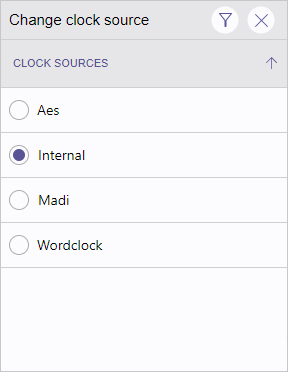
Some devices, while functioning as Media Clock leaders, allow users to choose from different clock sources to generate the Media Clock. To select a different clock source, left-click the icon of the current Media Clock leader. A popup will appear, listing possible clock sources. Left-click one of the icon-circles to choose a different clock source.
Device Name
The device name can be changed by clicking on the name and entering a new one. When multiple devices are selected, the name will be changed only for the device that is clicked. The names of other selected devices will remain unchanged.
Vendor & Type
This section displays the vendor and type of the device.
Firmware
This column displays the firmware version for each device.
If several devices from the same vendor and type are connected but have different firmware versions, Milan Manager will show an  icon to alert you.

Milan Certification
Milan certification is indicated using the following icons:
 |
The device reports Milan certification. |
 |
The device does not report Milan certification. |
Device Configurations
Some devices support multiple configurations, which may include different sampling rates (such as 48kHz or 96kHz) or Ethernet port settings. When this feature is available, a dropdown menu is shown for selecting the desired configuration.
Changes are not applied immediately. A confirmation dialog is displayed before any changes take effect.
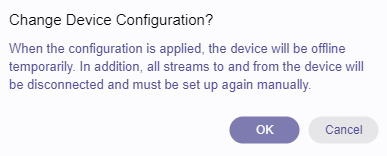
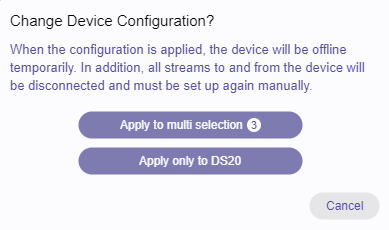
Configuration changes can also be applied to multiple devices at once, provided all selected devices support the same configuration options.
Any change applied to one of the dropdown menus will be applied to all selected devices. Changes are not applied immediately. A confirmation dialog is displayed before any changes take effect.
Sampling Rate
In the last column of the Devices tab, the current sampling rate for each device is shown.
Global Sampling Rate
In the upper right corner of the Devices tab, a global sampling rate selection is provided so that the sampling rate of all devices can be adjusted at once.
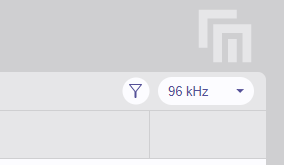
The available options for global sampling rate are generated automatically, listing all sampling rates (such as 44.1kHz, 88.2kHz, 96kHz, 176.4kHz, and 192kHz) that are present if at least one device on the network. The default option '96kHz' is always available.
When changing the global sampling rate, Milan Manager attempts to adjust the sampling rate of all audio units and streams connected, regardless of the current device selection. However, some devices do not allow direct changes to the sampling rate of audio units. These devices will not be affected by the global change, and a dialog will appear listing all devices where changes are not applied.

If a device does not support direct sampling rate changes, it may be required to manually adjust the device configuration and reconnect all streams manually.
An icon is shown if the device's sampling rate does not match the global selection.
In cases where a global sampling rate cannot be applied (e.g., when loading a network state with all devices using different sampling rates), the global sampling rate selection will display '– kHz'.
Device Identify
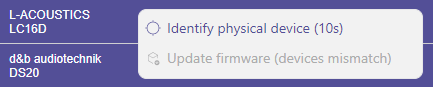
Some devices implement an identification feature to help locate the device. This feature can be invoked by right-clicking one or multiple devices and choosing 'Identify physical device (10s)'.

Firmware Update
A generic process is provided by Milan Manager for updating device firmware. A firmware update file from the manufacturer is required.
Firmware updates can be started by right-clicking one or more devices of the same vendor and type, then selecting 'Update Firmware'.
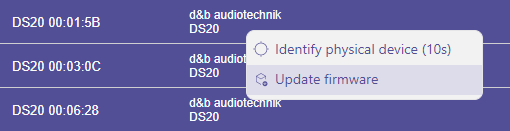
After the update option is chosen, a firmware file must be selected.
| Further steps | |
|---|---|
| The update is started by pressing 'Start'. | 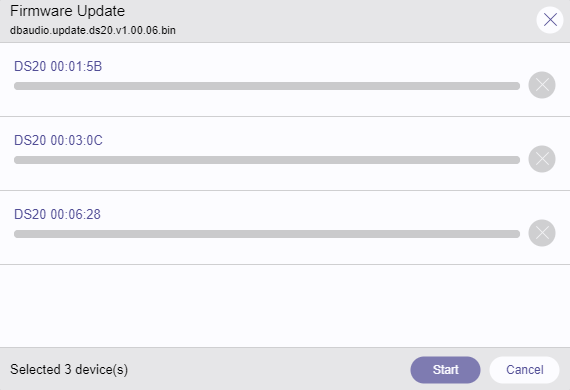 |
| Progress is shown during the update. |  |
| When the update is finished, a summary indicates whether the update was successful or failed. | 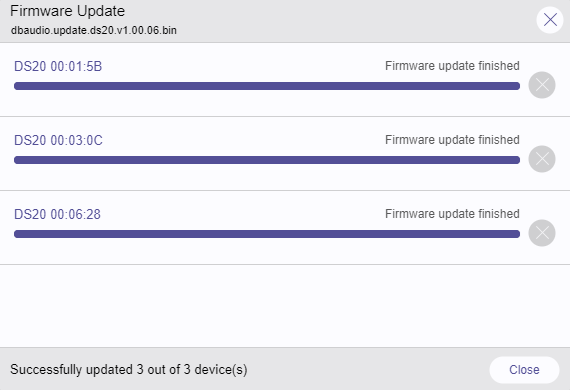 |
Each device is rebooted after the update.
Aborting an ongoing update is possible by either choosing 'Abort' or pressing the  button on a specific device.
If a device does not support the generic firmware update, 'not supported' will be shown.
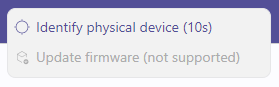
If a multiselection contains devices of different vendors or types, 'devices mismatch' will be shown.
Options
The following options are available at the top right corner of the Devices tab:
| Option | Keyboard Shortcut | |
|---|---|---|
 |
Display filtering options |
CTRL / ⌘ + F |