Offline editing
Offline mode allows users to modify device parameters without applying them to the network. Additionally, it enables pre-configuration of a Milan network while disconnected.
The main application window features a  toggle button to change between online and offline modes.

Milan Manager defaults to online mode upon startup. To switch to offline mode, move the toggle from right to left.

During offline editing sessions, Milan Manager offers the same functionality as online mode, except for certain information that is unavailable due to the lack of live data. This includes:
- Network topology and device errors (Network tab).
- Device configurations (if applicable) (Devices tab).
- Device firmware version information (Devices tab).
Changing to offline editing
When transitioning to offline mode, there are multiple options for proceeding with the current Milan Manager session.
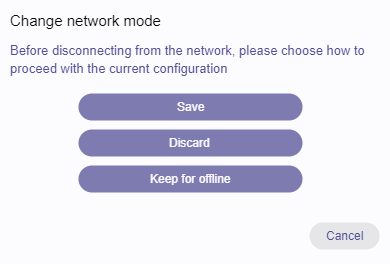
The following options are available:
| Option | Description |
|---|---|
| Save | Save network state of the current Milan Manager session to a file and discard it afterwards. Start offline editing from scratch |
| Discard | Discard the current Milan Manager session without saving it to a file first. Start offline editing from scratch. |
| Keep for offline | Disconnect from the network but retain the current Milan Manager session to continue editing offline. |
| Cancel | Close the dialog and abort changing to offline editing. |
Saving and loading network states is also possible in offline mode.
Adding devices
While working offline, it is possible to manually add devices to the Milan Manager session. To add a device, use the  button in the Devices tab.
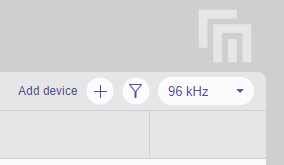
Clicking this button opens a dialog that allows selection of a device from the Milan Manager database.
To facilitate device selection, a filtering section is provided at the top of the dialog, enabling filtering by vendor or device type.

After selecting a device from the list, the number of devices to be added must be specified at the bottom of the dialog.
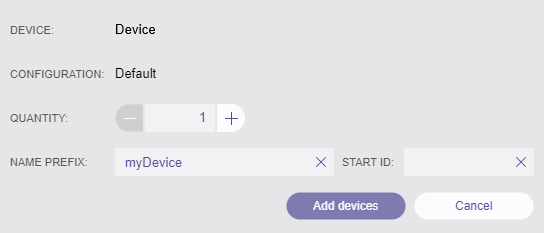
If the device supports multiple configurations, the desired configuration can also be selected. It is possible to define a device name and a Start ID. The Start ID specifies a number appended to the device name, which is useful when adding multiple devices at once or when a specific numbering scheme is required.
To complete the process, click 'Add devices' to add the selected devices to the session.
Milan Manager database
Milan Manager includes a comprehensive set of device profiles. These profiles are provided by device vendors and contributed to the Milan Manager project.
Removing devices
While working offline, it is possible to manually remove devices from the Milan Manager session. To remove one or multiple device, switch to the Devices tab, select the devices to remove right-click a device row, and choose 'Remove device'.
Changing to online
When transitioning to online mode, there are multiple options for proceeding with the current Milan Manager session.
To apply the current offline session to the connected network, first save the session to a file using 'Save network state', and then apply it to the network using 'Load network state' afterwards.
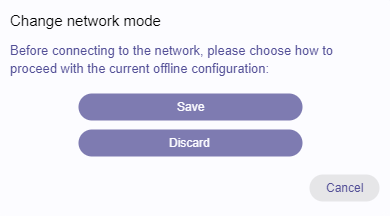
The following options are available:
| Option | Description |
|---|---|
| Save | Save network state of the current Milan Manager session to a file and view devices detected on the connected network. |
| Discard | Discard the current Milan Manager session and start viewing devices detected on the connected network. |
| Cancel | Close the dialog and abort connecting to the network. |