Application Window
The application window combines the header with the main menu, the central area with the main tabs, and the network interface selection at the bottom.
Header
The header in the upper left corner of the application provides access to the main menu, the Event Log, and offline editing.

Main Menu
The main menu provides access to file operations, application settings, and help. Left-clicking the  button in the upper left corner of the application opens the main menu.

The menu contains the following options. Keyboard shortcuts use the Ctrl key (Windows) or the ⌘ key (macOS).
| Option | Description | Keyboard Shortcut |
|---|---|---|
| Save network state | Backs up the Milan network state and device configuration to a file. | CTRL / ⌘ + S |
| Load network state | Recalls the Milan network state and device configuration from a previously saved file. | CTRL / ⌘ + O |
| About | Displays application information. | |
| Color mode | Specifies the color scheme used by Milan Manager. Options include light, dark, or following the operating system's setting. | |
| Workflow | Switches between the Channels mode and Streams mode routing workflows. | |
| Help | Displays this help content. | F1 / ⌘ + ? |
| Check for updates | Manually checks if a new version of Milan Manager is available (requires an internet connection). | |
| Send feedback | Sends feedback to the Milan Manager team (requires an internet connection). | |
| Exit | Quits the application. | ALT + F4 / ⌘ + Q |
Workflow
Milan Manager offers two workflows for routing audio channels between devices. Background on how both workflows relate to streams and channels is available in Channels mode and Streams mode.
| Workflow | Description |
|---|---|
| Channels mode | Channels are connected directly between talker and listener devices by dragging them onto each other. |
| Streams mode | Routing is performed using the stream matrix in the Overview and Routing tabs. |
Left-clicking 'Workflow' in the main menu and selecting either 'Channels mode' or 'Streams mode' switches the workflow. The selection is remembered for the next start of Milan Manager.
Color Mode
The color mode defines the color scheme of the application. A light design, a dark design, or the operating system's setting can be selected via 'Color mode' in the main menu.
| Light mode | Dark mode |
|---|---|
 |
 |
Event Log
The Event Log window lists all changes to device connections, changes to devices, and other information. Left-clicking the 'Event Log' button, located next to the main menu, toggles the visibility of the window. Alternatively, the CTRL / ⌘ + E keyboard shortcut toggles it.
Online/Offline Toggle
Offline mode allows device parameters to be modified without applying them to the network, and enables pre-configuration of a Milan network while disconnected. The toggle button next to the 'Event Log' button switches between online and offline mode. Details are available in Offline editing.
Central Area
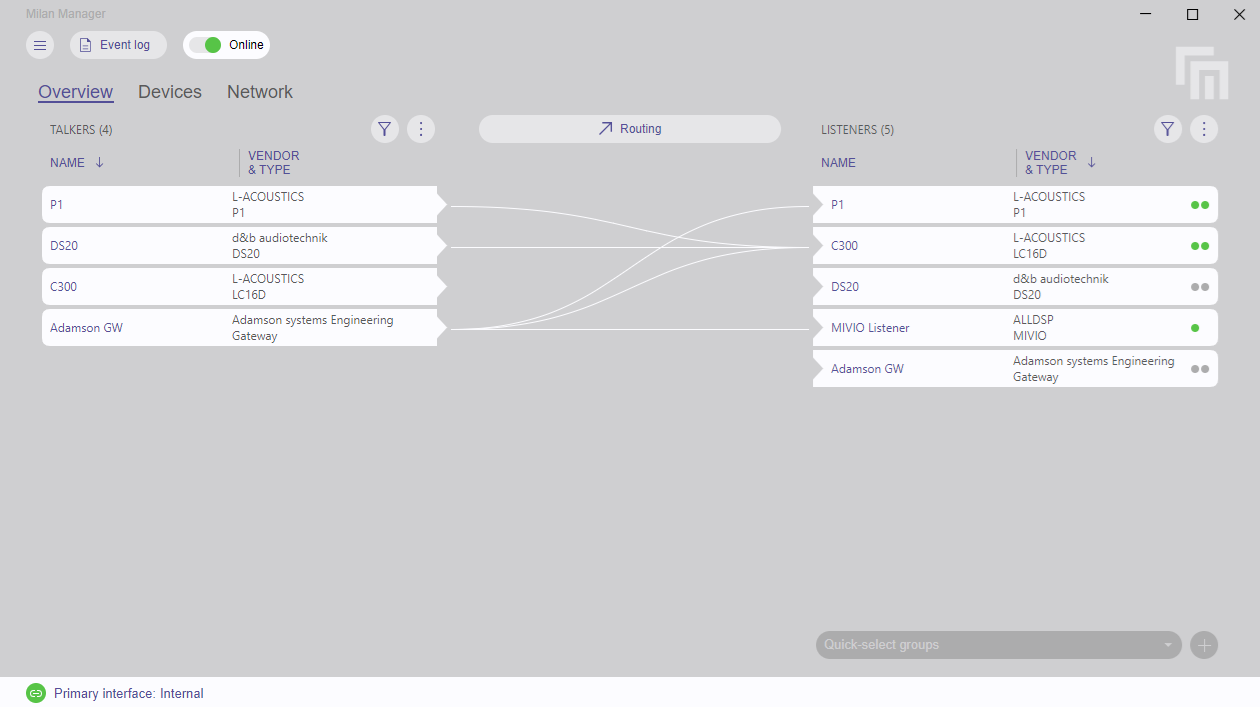
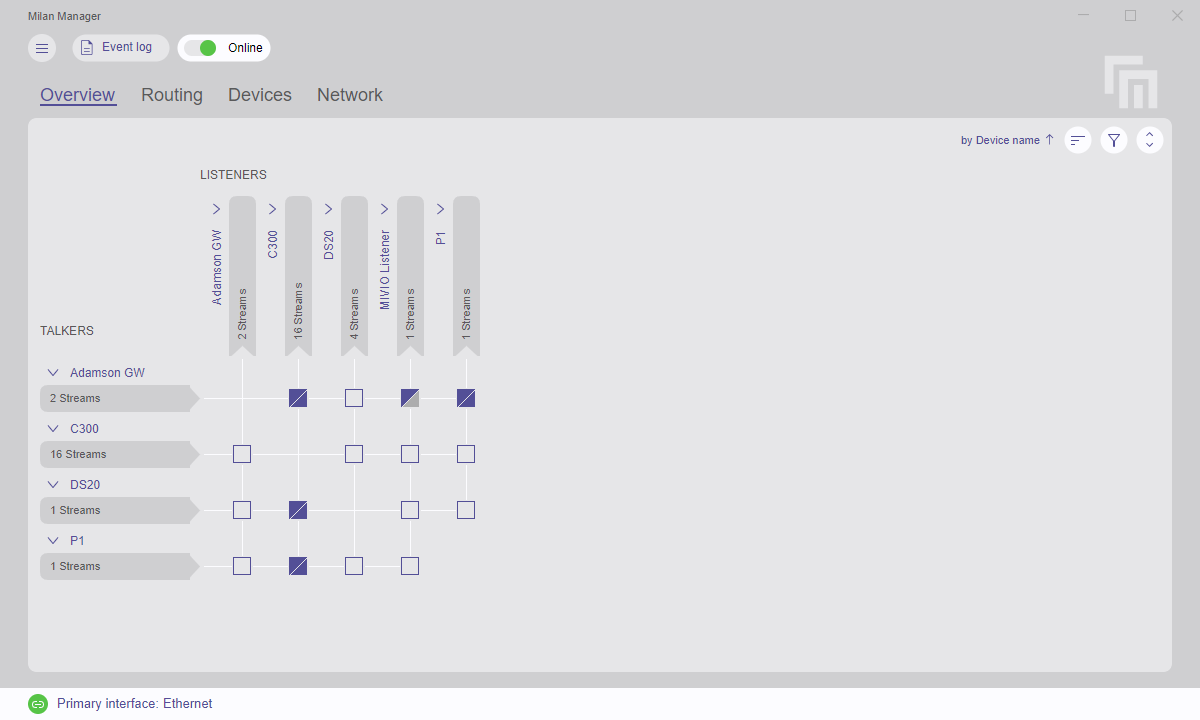
The central area of the application contains the main tabs. The tabs shown depend on the selected Workflow:
- Overview:
- In Channels mode, a single Overview tab combines device selection and channel routing.
- In Streams mode, the Overview tab is used for monitoring and controlling all stream connections between devices within the AVB domain. A separate Routing tab presents a detailed perspective of individual devices and their audio mappings.
- Devices: Contains detailed information about devices in the network.
- Network: Provides information about errors occurring in or between devices, and a topology graph of connected devices in the primary and secondary AVB domain.
Network Interface
Milan Manager communicates with devices through one network interface of the computer. Left-clicking the interface name in the lower left corner of the application opens the network interface selection.

Further instructions on connecting to a network are available in Connect to a network.