Overview
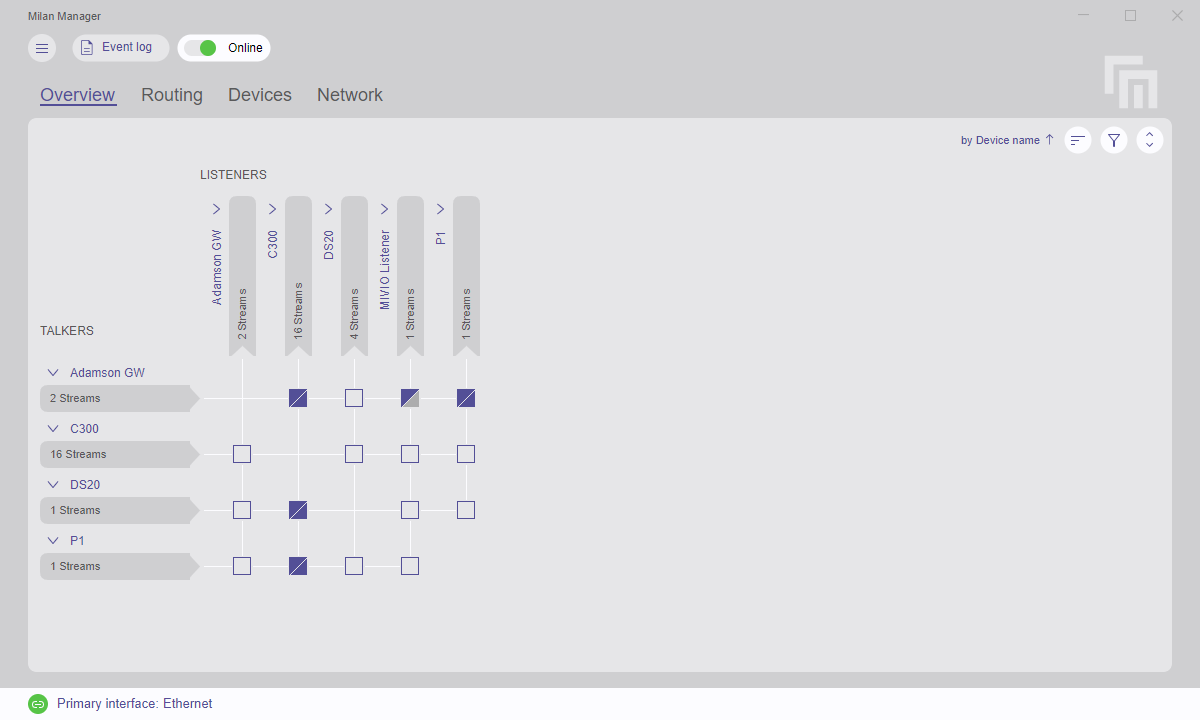
The Overview tab displays the status of all stream connections between devices within the AVB domain.
Status information
The square at the intersection point of talkers and listeners provides further information on the connection status.
 |
No active connection exists. |
 |
Both primary and secondary connections are active. |
 |
Only the primary connection is active, with no secondary connection available. |
 |
The primary connection is active, but there is an issue with the secondary connection. |
 |
The secondary connection is active, but there is an issue with the primary connection. |
 |
There is an issue with the primary connection, and no secondary connection exists. |
 |
Issues exist with both primary and secondary connections. |
Connecting or releasing streams
To connect or release a stream connection between a talker and a listener, hover over the square at the intersection point and left-click on it.
Diagonal connections
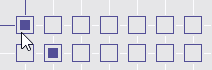
By holding the Ctrl key (Windows) or the ⌘ key (macOS) while clicking a connection between a talker and a listener, routing is applied or removed diagonally.
The resulting change is visually indicated prior to the establishment or removal of the connections.
Stream names
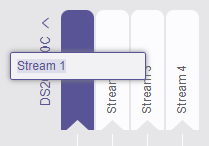
Stream names can be modified by left-clicking on the stream.
| Talkers | Listeners |
|---|---|
 |
 |
Links
Use the 'jump-to' navigation feature by clicking the  icon next to stream names for faster navigation.
Upon clicking the link, the application will transition to either the Listeners or Talkers view of the Routing tab, and the corresponding device will be selected.
Options
The following options are located at the top right corner of the Overview tab:
| Option | Keyboard Shortcut | |
|---|---|---|
 |
Change of sorting factor. |
|
 |
Display filtering options. |
CTRL / ⌘ + F |
 |
Expand or collapse all device streams. |
E |